While trying to break a test machine running IGEL OS, shadowing the device is usually a nice and easy way to stay in control while doing so.
That is, until you open a terminal.
Having to manually type commands gets tedious surprisingly quickly, especially with all the >.<\_| characters useful Linux commands seem determined to sprinkle everywhere.
That is where I ran into a limitation that sounds minor until you actually need to use the session:
You cannot paste text from your local clipboard into an IGEL OS device when shadowing it through the UMS Web App.
For clicking around the desktop, that is not much of a problem. For long commands, configuration strings, URLs, tokens, or anything else you really do not want to type by hand, it gets old quickly.
The obvious solution would be clipboard synchronization.
A route I ended up not taking.
Instead, I wanted to see whether the Web App’s existing keyboard input mechanism could be abused—politely—to turn clipboard text into normal remote keystrokes.
A standard shadow session using the UMS Web App provides normal mouse and keyboard input, but no copy-paste function like the one available in some external VNC viewers.
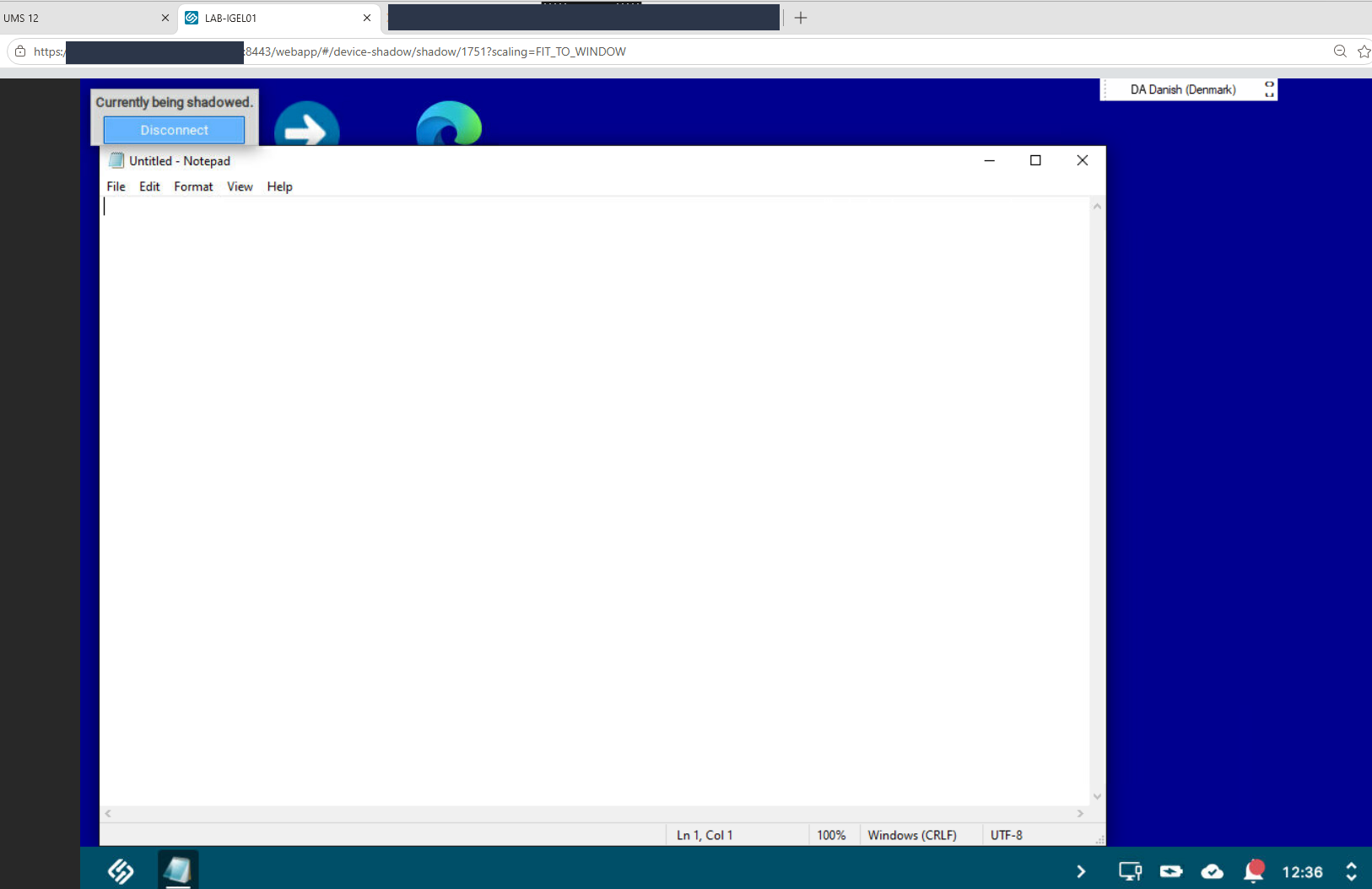
The Environment
There were also a few important constraints.
External VNC viewers were not an option, and neither was the traditional UMS Console. The administrator workstation was not allowed to connect directly to the IGEL endpoint.
I also wanted to avoid introducing another local dependency just to solve clipboard handling.
That ruled out approaches involving:
- external VNC clients
- AutoHotkey
- locally installed helper executables
- direct administrator-to-client connectivity
Changing the Content Security Policy just to make the workaround possible was also off the table.
Ideally, whatever I ended up with would be a very small frontend-only change, without modifying the compiled UMS Web App application bundles.
The problem
The normal workflow is simple:
An administrator copies some text on their workstation, switches to the remote session, and pastes it.
Except nothing happens.
The UMS Web App shadow viewer does not provide the clipboard functionality needed for that workflow.
What I wanted was effectively this:
Copy text locally
        |
        v
Click "paste" in UMS Web App
        |
        v
Text appears in remote IGEL session
The important part was how to get from the second step to the third.
Implementing real VNC clipboard synchronization would mean understanding and potentially modifying considerably more of the shadowing stack.
Before going anywhere near that, I wanted to know whether the Web App already contained everything required to solve the problem another way.
The initial hypothesis
My first assumption was that clipboard forwarding was simply unavailable somewhere along the UMS proxy path. I had already seen that Web App functionality could break over something as small as a typo (How a typo broke TCP scan in the UMS Web App).
That may still explain why normal clipboard synchronization does not work, but I did not actually need to prove it to solve the immediate problem.
The Web App could already send keyboard input to the remote device. So the more interesting question became:
Could I reuse that path?
Instead of synchronizing a clipboard, the browser could read the local clipboard and turn its contents into keyboard events.
Conceptually:
Local clipboard
        |
        v
JavaScript reads text
        |
        v
Text becomes keyboard events
        |
        v
UMS Web App receives those events
        |
        v
Existing shadow input mechanism
        |
        v
Remote IGEL session receives normal typing
That changes the problem quite a bit.
I no longer needed clipboard synchronization. I needed to find out how the Web App sends keyboard input.
Looking at the shadow viewer
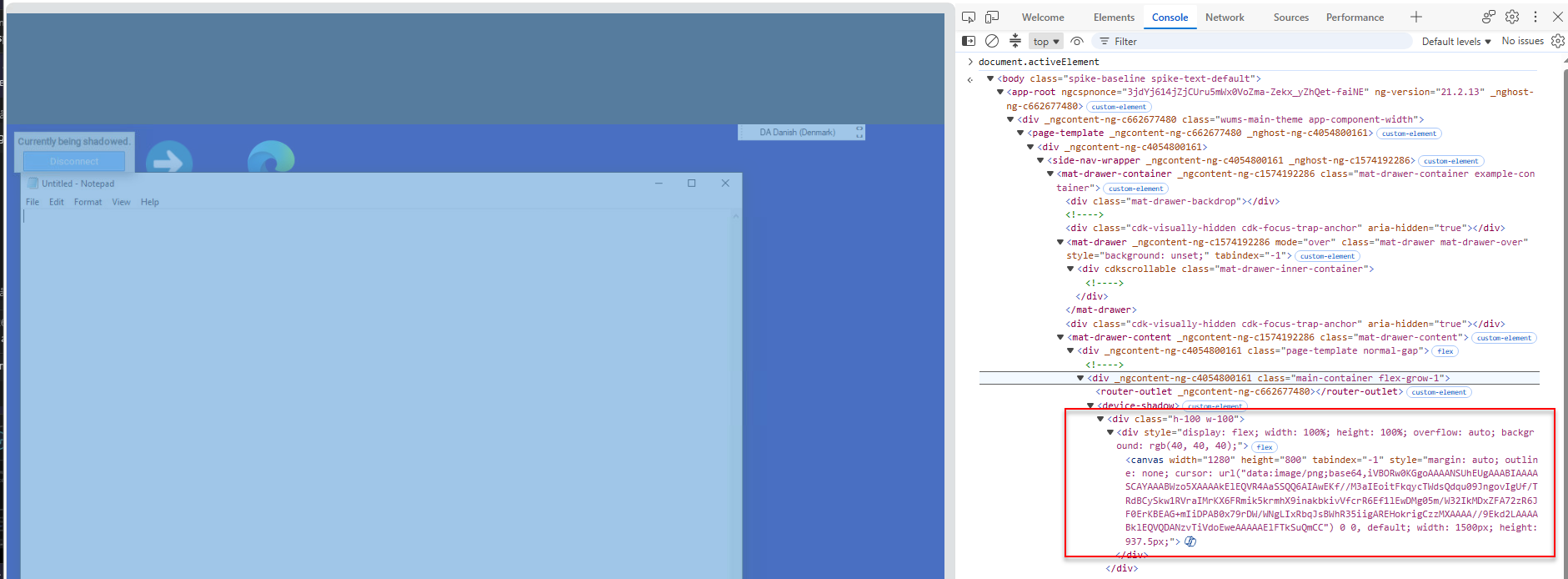
I opened a shadow session through the UMS Web App and started looking at the page in browser DevTools.
The first useful question was simply:
What currently has keyboard focus?
document.activeElementThe result was the shadow canvas:
<canvas width="1280" height="800" tabindex="-1" ...>There was a single canvas associated with the remote display. That made it the obvious place to continue looking.
Inspecting the event listeners on that canvas showed handlers for the expected remote-control input:
mousedownmouseupmousemovetouch eventswheel eventskeydownkeyup
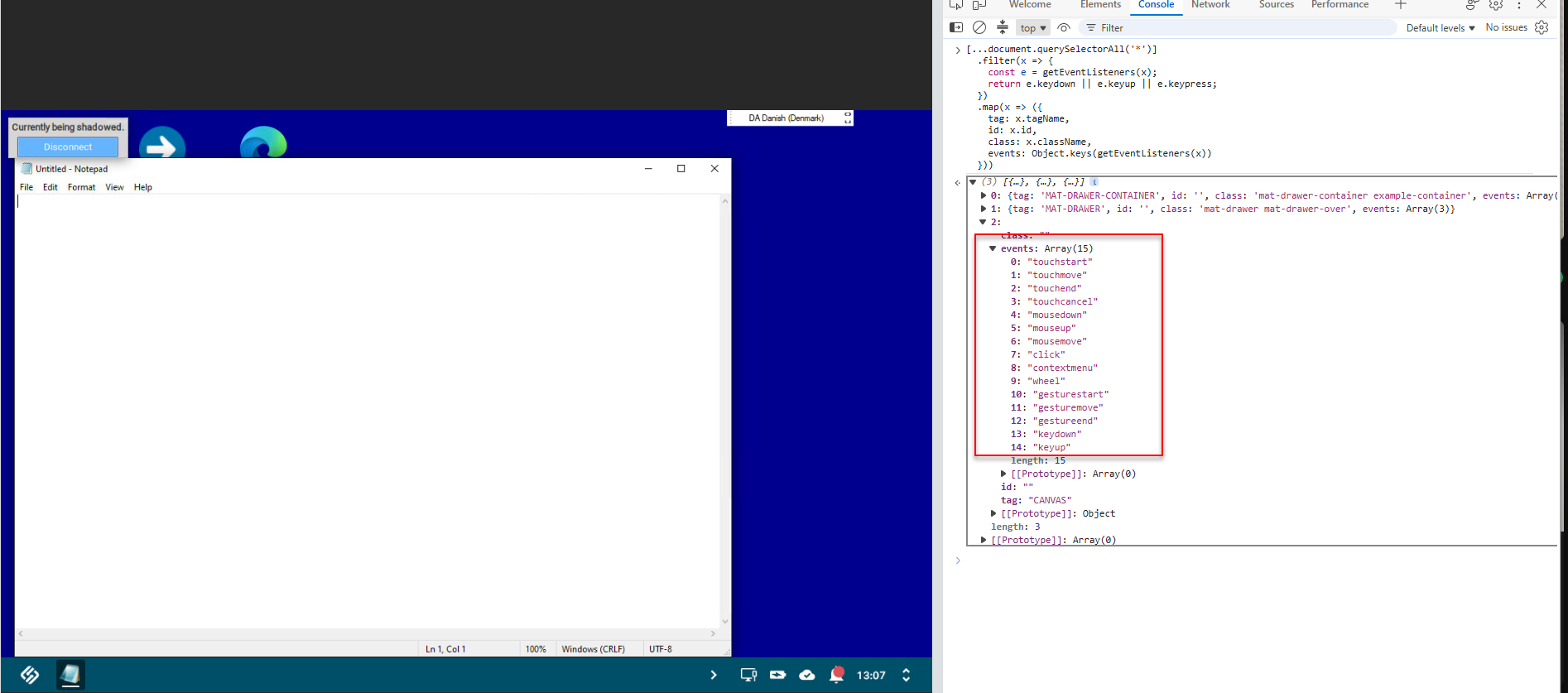
The interesting ones were the last two.
Keyboard events were being handled directly on the canvas used by the shadow viewer. That gave me a much narrower target. I did not need to reverse-engineer the entire Web App.
I first needed to determine whether the existing keyboard handler cared where its events came from.
Pushing the boundaries
At this point, I had a plausible input path, but only a plausible one.
Seeing a keydown listener does not prove that manually generated browser events will make it through the shadow connection.
So I tested the smallest thing possible.
One key.
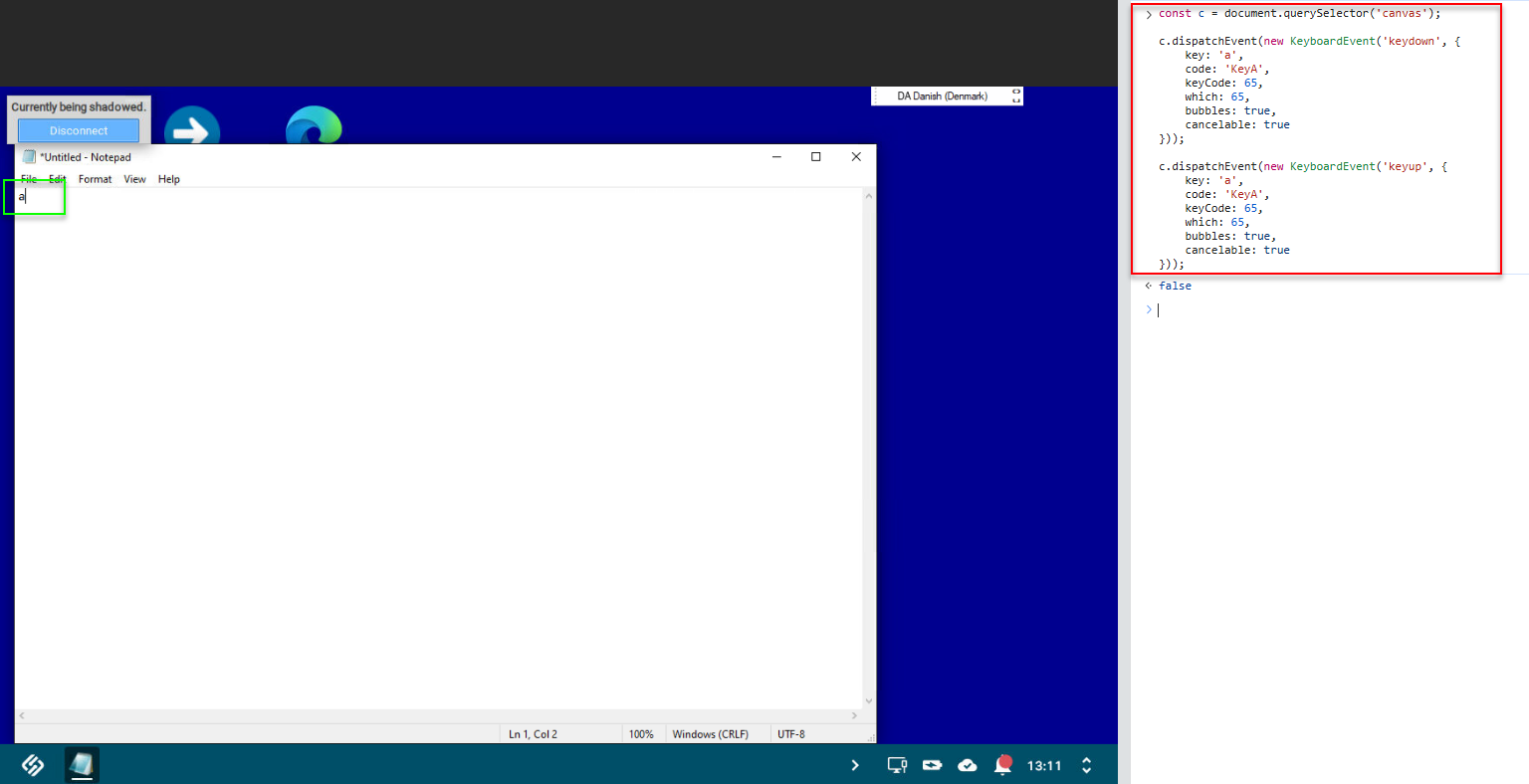
The following code locates the canvas and dispatches a synthetic press and release for the letter a:
const c = document.querySelector('canvas');

c.dispatchEvent(new KeyboardEvent('keydown', {
    key: 'a',
    code: 'KeyA',
    keyCode: 65,
    which: 65,
    bubbles: true,
    cancelable: true
}));

c.dispatchEvent(new KeyboardEvent('keyup', {
    key: 'a',
    code: 'KeyA',
    keyCode: 65,
    which: 65,
    bubbles: true,
    cancelable: true
}));
This test matters more than it initially looks.
The question was not whether JavaScript could create a keyboard event. That is easy.
The question was whether the existing UMS shadow viewer would consume that event through the same code path as physical keyboard input and ultimately forward it to the IGEL device.
That is the point where the PoC either becomes interesting or dies immediately.
From one key to a clipboard
Once that input path was confirmed, the rest of the design became relatively small.
The browser can access the local clipboard through the standard Clipboard API, subject to the browser’s normal permission and user-interaction requirements.
The PoC therefore only needed to connect two existing pieces:
- Read text from the local clipboard.
- Feed that text into the shadow viewer as keyboard input.
In simplified form:
button click
    |
    +--> read clipboard
            |
            +--> take first character
            |       |
            |       +--> generate keydown
            |       +--> generate keyup
            |
            +--> next character
            |
            +--> repeat
There is no clipboard object arriving on the IGEL endpoint. From the remote system’s perspective, somebody is typing very quickly.
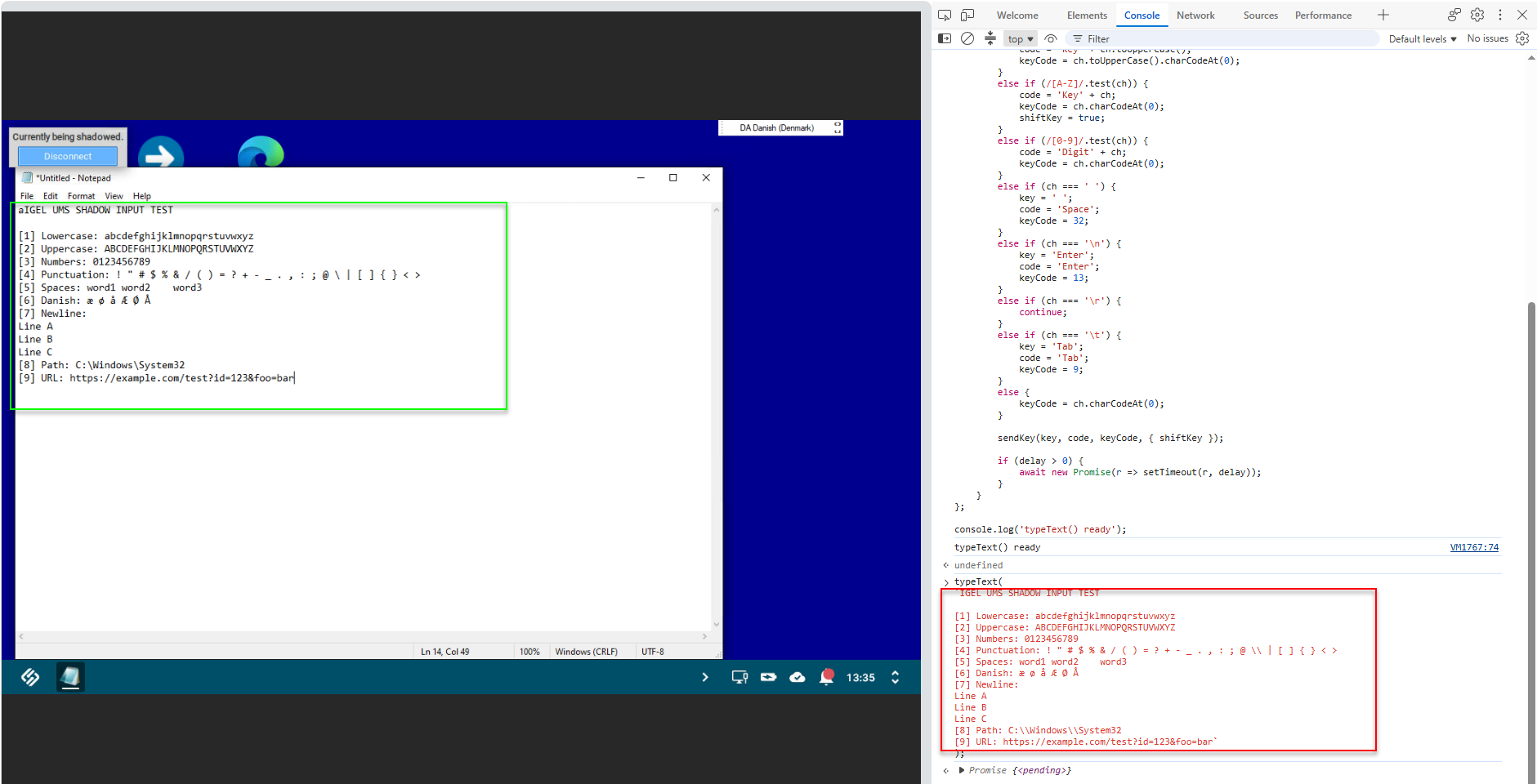
Handling more than a
A single ASCII character is enough to validate the idea. It is not enough to call the solution finished.
Real clipboard text introduces several additional cases:
- uppercase characters
- spaces
- punctuation
- newlines
- symbols requiring Shift
- keyboard-layout differences
- Unicode characters
- characters that do not map cleanly to a single keyboard event
- timing when sending longer strings
This is where it is worth being conservative.
The test could not reasonably be called a working clipboard replacement without actually testing those character classes.
On the tested setup, each class of character should be validated separately, and anything unsupported should be documented rather than guessed.
By building a small function, I could call typeText() with a test string and let the function translate it into the corresponding keyboard events.
That also gave me a cleaner way to test the keyboard-injection logic independently of the clipboard.
Security and scope
There is an important boundary to this PoC.
It does not create a new direct connection between the administrator workstation and the IGEL client.
Input still travels through the existing UMS Web App shadowing mechanism. The browser-side addition only changes how that input is produced.
Likewise, the PoC does not require weakening the UMS Content Security Policy or deploying another executable to administrator workstations.
That made it considerably more attractive than the alternatives I initially considered.
This is still a local modification to the UMS Web App, so I would treat it as unsupported by IGEL unless they explicitly say otherwise—and assume it could break after an update ;)
Adding the button
At this point, the interesting part was already working.
I had a function that could take text and turn it into keyboard events, and I had already established that those events could make their way through the existing shadow input path.
What I did not have was a usable workflow.
Opening DevTools and manually calling typeText() every time I wanted to paste something was useful for proving the concept, but not exactly something I wanted to explain to an administrator.
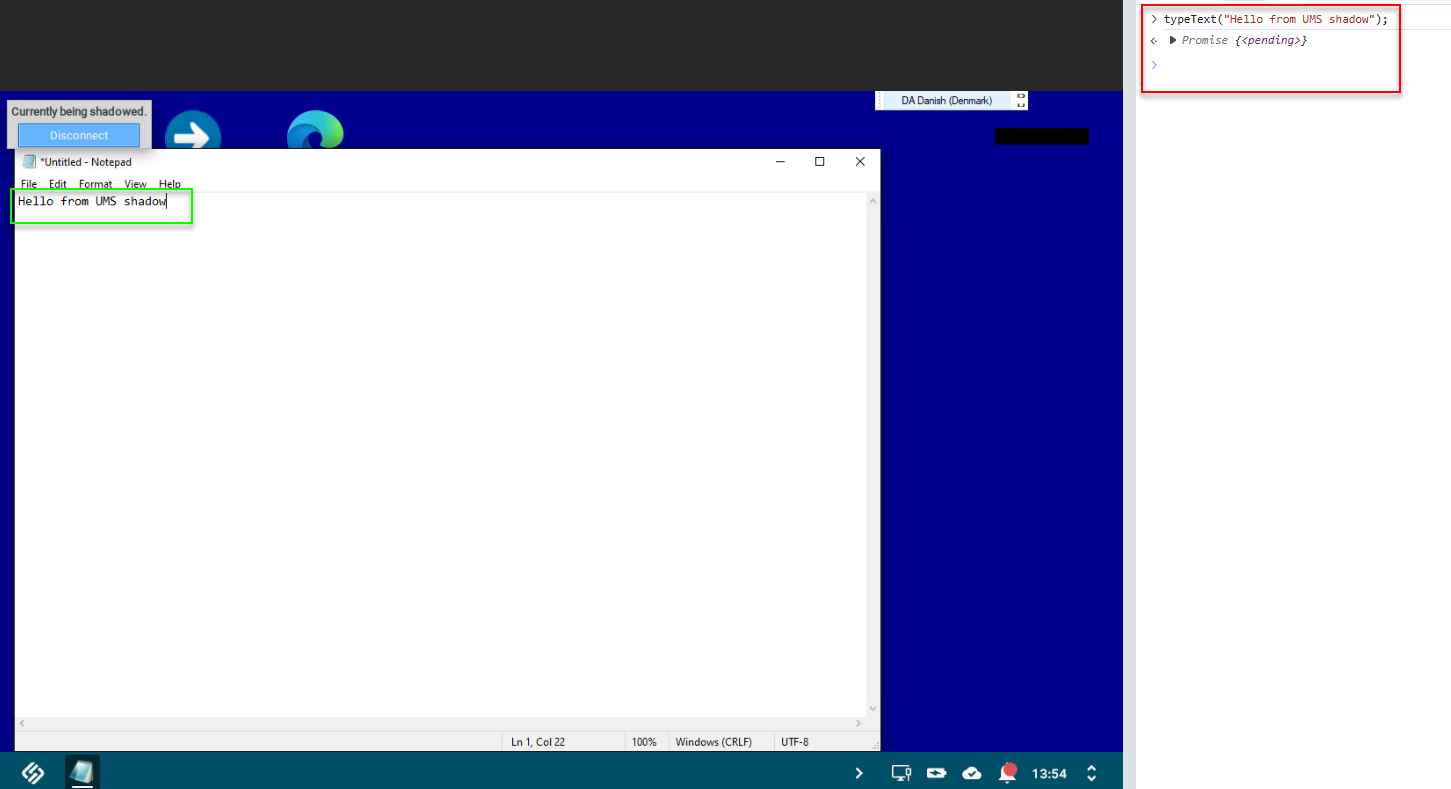
Before touching the UI, I kept the next test simple: call typeText() directly and verify the result in the remote session.
That separated the keyboard-injection function from the clipboard and button logic. If typeText() worked on its own, I knew the shadow input path and character translation were doing their part. If the finished button later failed, I could look at the Clipboard API or UI code instead.
Using typeText():
That left the button with only a very small responsibility:
Button click
    |
    +--> read local clipboard
            |
            +--> pass clipboard text to typeText()
                    |
                    +--> existing shadow keyboard path
In other words, the button did not need to know anything about VNC, the UMS proxy, or how the remote keyboard handling worked.
It only needed to read the clipboard and hand the resulting string to the function I had already tested.
The UI-side logic is essentially this:
async function pasteClipboard() {
    const text = await navigator.clipboard.readText();
    typeText(text);
}
The button can then call that function from a normal user click:
button.addEventListener('click', pasteClipboard);Keeping those two parts separate was useful for another reason: clipboard access and keyboard injection could now be tested independently.
If calling typeText() directly worked but clicking the button did not, the problem was somewhere in the UI or Clipboard API path.
If the button successfully read the clipboard but the characters were wrong on the remote side, the problem was in the character mapping.
That made the final piece considerably easier to reason about.
The exact frontend file and location used to add the control are intentionally not included here. The important part is that the button itself is only a thin wrapper around functionality that had already been tested independently.
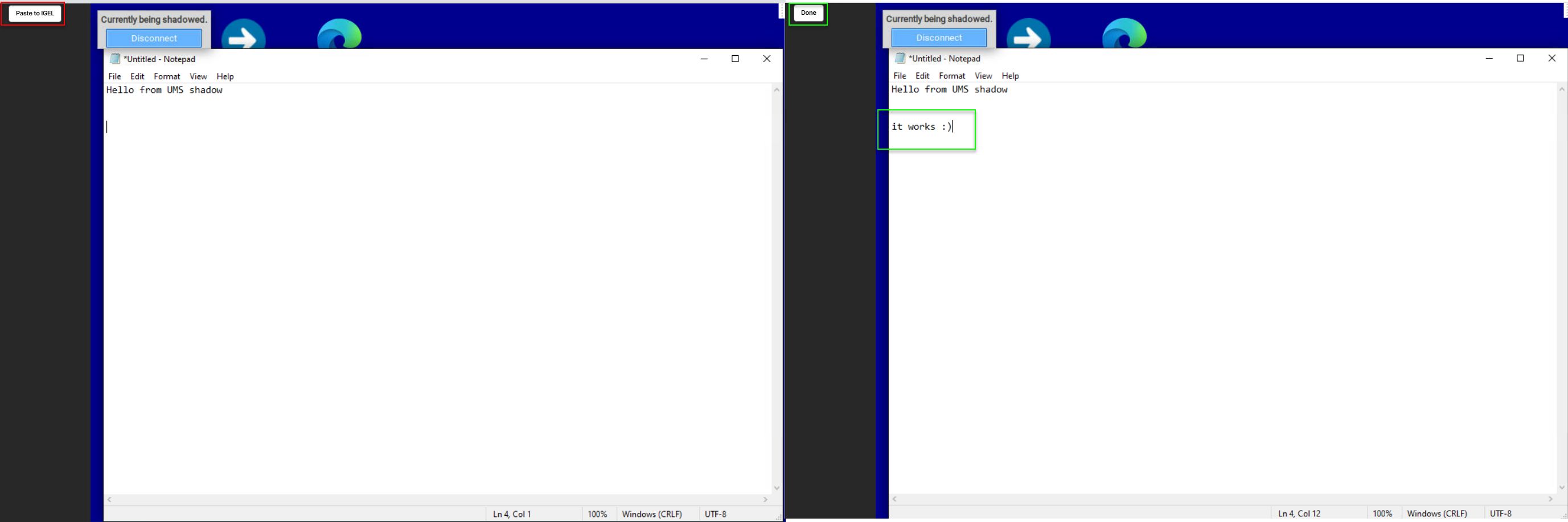
By creating a JavaScript file containing the button code, placing it on the UMS server, and configuring the UMS Web App to load it, I could add a “Paste to IGEL” button without touching the compiled application bundles.
Using the new, fancy button:
Conclusion
Rather than trying to add clipboard synchronization to the UMS proxy path, the PoC reused a path that was already known to reach the endpoint: normal shadow-session keyboard input.
The important sequence was:
Shadow canvas receives physical keyboard input
        |
Synthetic keyboard event is tested against the same canvas
        |
The event reaches the remote session
        |
typeText() turns a string into the same input sequence
        |
The button reads the clipboard and passes the text to typeText()
Nothing about that makes it true clipboard sharing. For the use case, it does not need to be.
It just needs to type the text at the other end.
By identifying the canvas handling keyboard events and testing synthetic input against it, the clipboard problem could be approached without implementing clipboard synchronization at all.
Instead:
clipboard text -> browser -> keyboard events -> existing shadow input pathA much smaller problem. All solved by the press of a button.
Now on to breaking another machine or two ;)