While helping migrate an environment from NoTouch to IGEL, I ran into one of those small features you do not think much about until it is missing.
I have already written about the hunt for the missing (Up)Link during that migration work. This time, the question was what we could see on a device before touching it.
For NoTouch devices, the administrators could request a screenshot before opening a shadow session, rebooting a device, or otherwise interrupting somebody’s day.
A quick look at the desktop helped them decide whether someone appeared to be working on it.
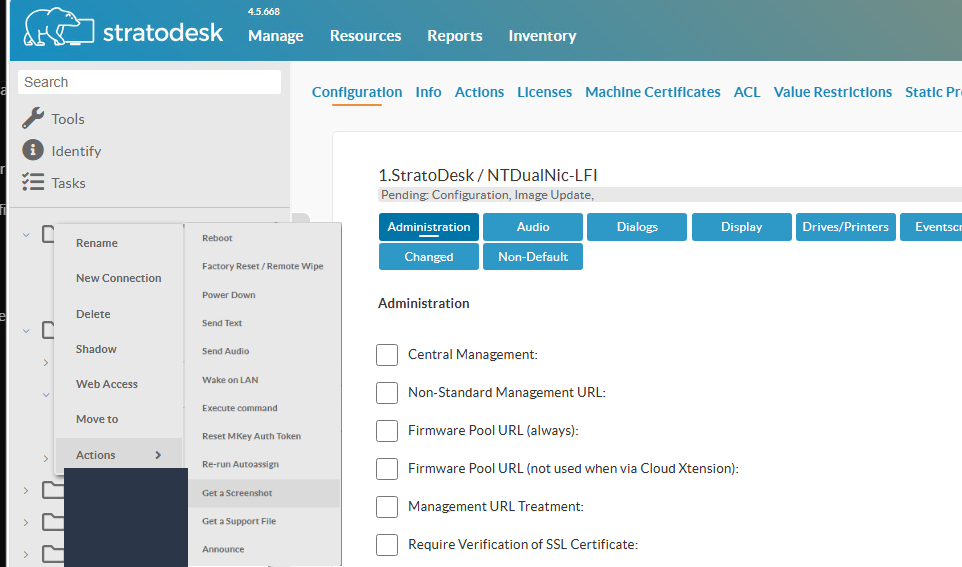
A single picture could never guarantee that the device was unused. But I would be lying if I said this function hadn’t saved me once or thrice.
Someone would confirm that a device was “ready for troubleshooting”, and the screenshot would show an end user still actively working on it.
Useful information to have before clicking Reboot.
On the IGEL OS 12 setup we were moving to, I could not find an equivalent workflow in the UMS Web App.
Shadowing was, of course, available. But I wanted that quick look before opening a remote-control session. Using shadowing to decide whether to start shadowing did not really solve that.
So I started looking at what we already had.
The screenshot tool was already there
The first question was whether the endpoint could already take a screenshot, or whether I would have to build that part too.
On the test device, the answer was sitting in /bin/:
/bin/xfce4-screenshooterWith the display and Xauthority file specified, it could capture the full desktop directly to a PNG:
DISPLAY=:0.0 XAUTHORITY=/userhome/.Xauthority \
/bin/xfce4-screenshooter -f -s /tmp/igel-screenshot-test.png
The resulting PNG showed the actual desktop, including the taskbar and open windows.
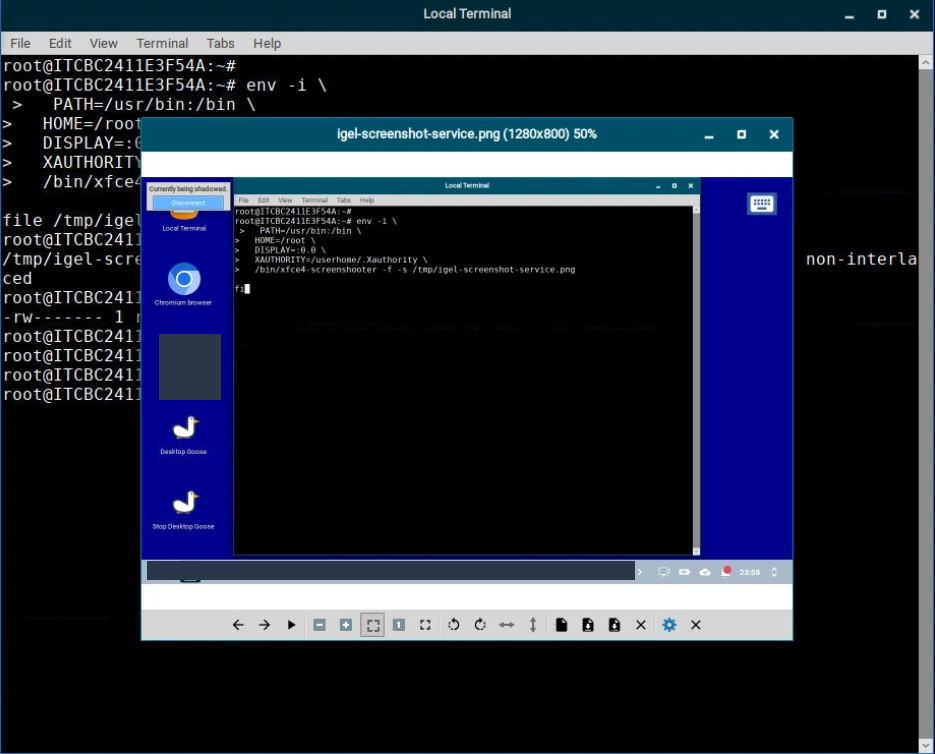
But was it only working because I was running it from an interactive terminal? If somebody had to be inside the session to take the picture, I had not got particularly far.
Further tests with a clean environment and a transient systemd service also produced valid PNGs. Given the correct display context, the capture could run in the background.
Some of these early tests still had a shadow session open because I was using it to type commands. The capture command did not start shadowing, but I would need to test the finished workflow with that session disconnected.
For now, I had a tool that could take the picture. I just needed a way to ask it to run.
Could a profile do the asking?
My first thought was to use the custom commands already available through a profile, then trigger the screenshot by sending settings or running a job.
The first promising hook was After Reconfiguration:
System → System Customization → Custom Commands
       → Reconfiguration → After Reconfiguration
I placed the screenshot command there, assigned the test profile, and sent the settings with Apply Now.

The screenshot appeared.
Then I sent the same settings again. Nothing changed.
The PNG’s timestamp stayed where it was. In this test, the hook ran when the configuration actually changed. Sending the same profile again did not take another screenshot.
First run:
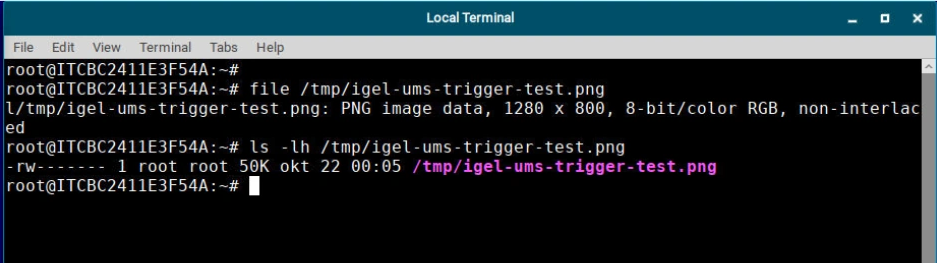
Second run:
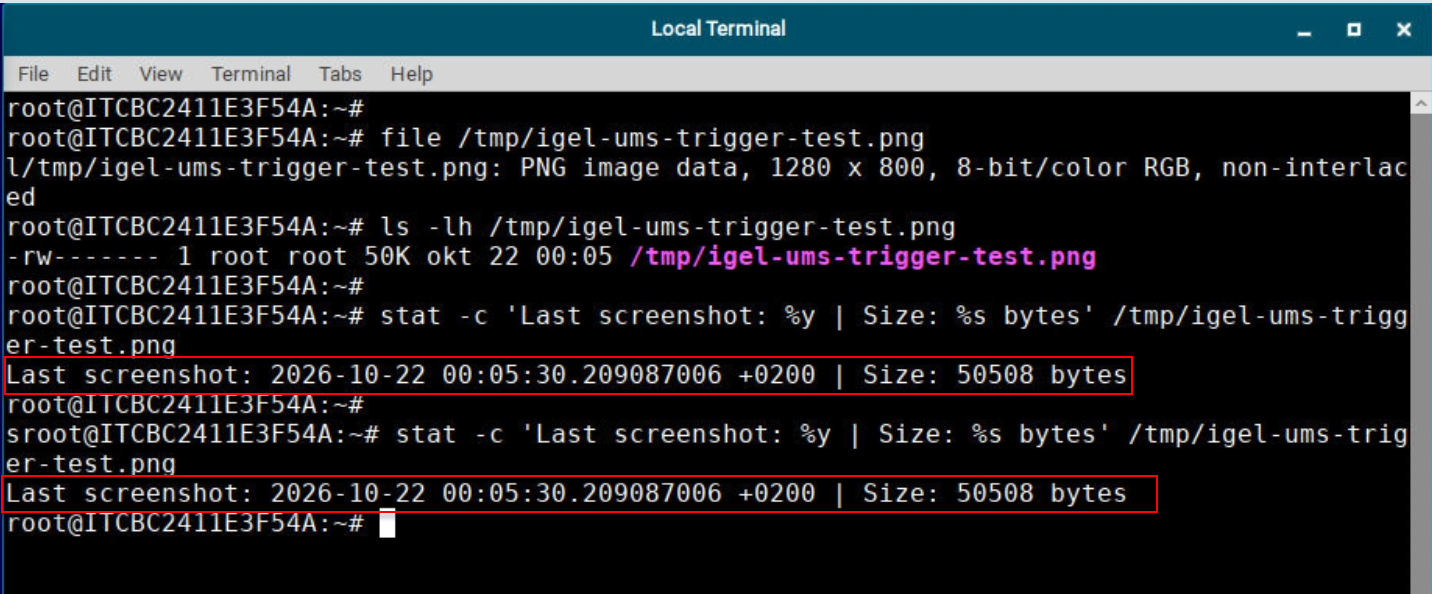
That made sense for a reconfiguration hook, but it did not make a very good screenshot button. I would have to change a setting each time to trigger another capture, turning a screenshot request into a configuration change. And because the command ran after reconfiguration, an unrelated profile change could trigger it too—even when nobody had asked for a screenshot. I wanted an explicit action: take a screenshot now.
There was another problem waiting behind that one anyway.
The screenshot was still on the device.
Retrieving the screenshot
Initially, I approached this from the obvious direction: the endpoint had created the file, so the endpoint should upload it to the UMS.
The UMS already communicated with the device and, more interestingly, could retrieve support information. Surely there was something useful in there.
There was, to a point.
IGEL supports adding Custom Log Files to the support-information collection. That gave me a simple test: include a known PNG and see whether it survived the journey back.
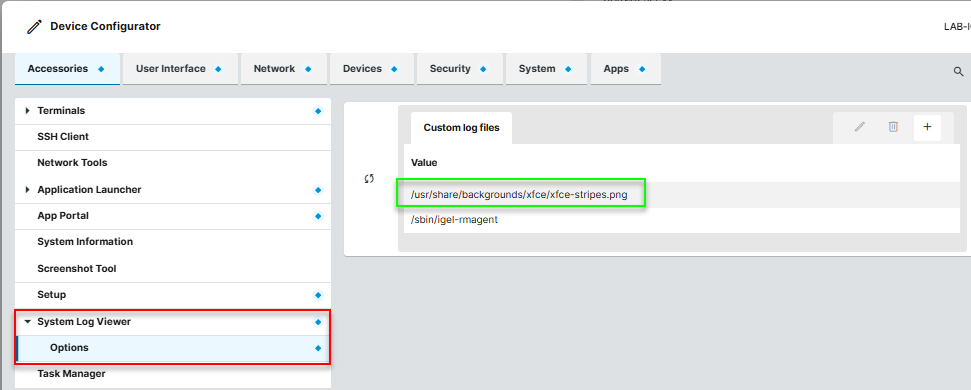
The PNG came back inside the downloaded ZIP. So the existing management path could move an image from the endpoint to the administrator.
It just collected a full diagnostic bundle along the way. A fairly large detour for one small picture.
When Old becomes “New”
Looking through IGEL’s documentation produced another promising lead: Device File → UMS.
For IGEL OS 11.
For IGEL OS 12, the same documentation describes a different approach: enable SSH and retrieve the file using SCP. That would get the file off the device, but it would also introduce the SSH dependency I was trying to avoid.
I also looked through the existing file-transfer and management components, but could not find a suitable, supported way to retrieve just our PNG.
Building an upload receiver was possible. But securing it was where the work started growing.
The server would at least need to know:
- Which device was uploading
- Whether that upload had actually been requested
- Which administrator should be allowed to retrieve the resulting image.
Putting reusable UMS credentials into an endpoint script was not an acceptable shortcut. The device already had a trusted management relationship with the UMS, so I wondered whether the upload could use that identity. I could not find a supported way to do so without exposing the device’s private key to custom code.
While the upload question remained open, I had found a better way to ask the device to take the picture.
From a custom command to an app
Since I had access to the IGEL App Creator Portal, I could package the screenshot logic into an actual app instead of leaving it attached to a reconfiguration hook.
The UMS Web App also supported Specific Device Commands, backed by the generic-command mechanism. According to IGEL’s documentation, apps can provide actions in this menu on devices running OS 12.3 or later.
That was much closer to what I wanted:
Select device → Execute screenshot command → App takes screenshotThe missing piece was how to make my app provide one of those commands. I could find documentation explaining how to use the menu, but not the registration details needed to implement it in my own app.
There were, however, existing apps doing exactly this. The BIOS tools were an obvious place to look: they exposed actions such as retrieving settings and triggering an update through that same menu.
With the wonderful Reverse Engineer Anything project available, I handed Codex some of the BIOS tools and asked it to investigate how they provided their commands.
Luckily, they contained the example we needed.
The UMS setup-definition parser looked for paths containing .generic_jobs. and ending in .name. That explained how the UMS found the command identifier and display label. The BIOS tool example also showed how to package the endpoint handler.
Our app packaged its command wrappers under /etc/igel/generic-command.d/. The tested wrapper used /config/bin/gencmd-dispatcher and called the app code. We could now connect the menu entry to the screenshot script, rather than just make a command appear in the UMS.
The commands appeared, and invoking the screenshot action produced a PNG. We had gone from running a script manually, through triggering it with a profile change, to an actual on-demand command.
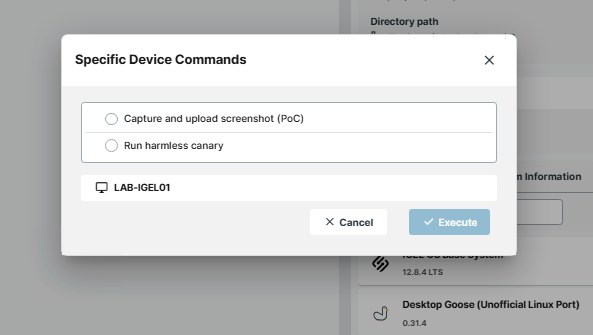
Now we just had to get hold of the picture.
The upload problem starts growing
After a couple of hours, the upload approach did work. One of the first working versions used HTTPS, an Ed25519 challenge-response mechanism tied to device attributes, and a separate one-time download credential.
Quite a lot of machinery for one screenshot. From one device.
Getting it to work still meant building a separate upload-and-download workflow alongside the UMS—more coordination than I wanted for one screenshot. The receiver had to tie each upload to an authorized request, the correct device and administrator, then keep the image available only to that requester. The endpoint also needed temporary upload credentials. Our native command could start the app, but it could not pass them along.
One attempt made that particularly clear. The UMS accepted a MESSAGE parameter in the Execute request and returned success. Promising - until we followed it further.
In the UMS code I inspected, the generic-command path built a fresh parameter map containing only COMMAND and APPNAME. Our extra value never reached the endpoint payload.
I had a functioning upload, but I still felt stuck:
I wanted an administrator to request a picture, not coordinate a file-transfer procedure.
Later that night, I was talking to a friend about a recent PHP CVE. He had been having a lot of fun dealing with what he called a “stupid upload vulnerability” at work.
He complained about how much more complicated the server side becomes once you have to secure the upload side properly: “If only the clients wouldn’t make retrieving files so difficult.”
And then it hit me.
Instead of making the screenshot come to us, what if we went for the screenshot?
Turning the transfer around
The endpoint already had the file. What if it briefly served that file and let the UMS fetch it?
The next test was simple: start a temporary Python HTTP listener on the endpoint and see whether we could fetch a file from it.
We started with harmless test content to test the transfer separately from the screenshot code. I then tried retrieving the file from my own laptop.
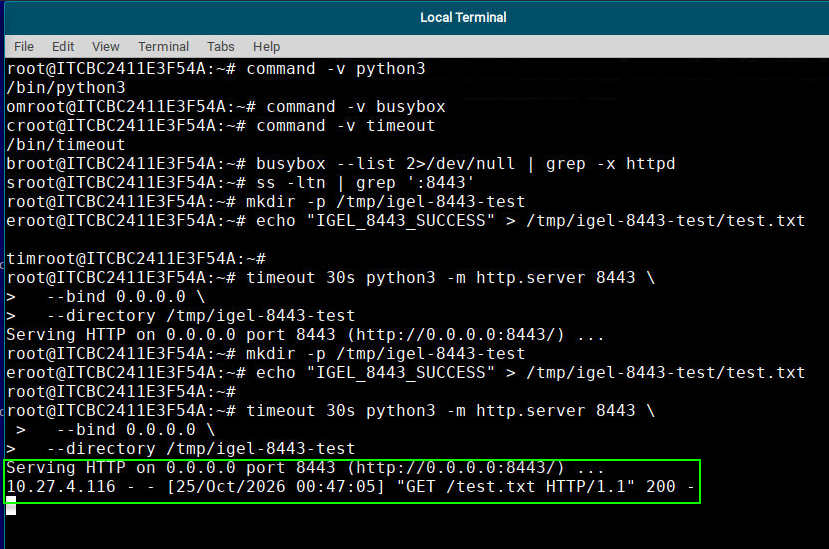
It worked.
The UMS server still needed its own test. I tried the same request from there, and the file came back too.
Combined with the capture functionality we already had, the intended flow became:
Run screenshot command
    → Capture PNG
    → Start temporary HTTP listener
    → Fetch PNG
I was not going to leave an open directory server running on the endpoints, though. And changing the transfer direction had not given the app access to the device’s management identity.
I decided to narrow the listener’s job considerably.
It would serve one screenshot, accept requests only from the UMS server’s configured source IP, and close after approximately 15 seconds. One successful download would also close the listener.
To avoid hardcoding the UMS address into the app, I made the allowed source IP configurable through its profile. The same app could then use the UMS address supplied for that environment.
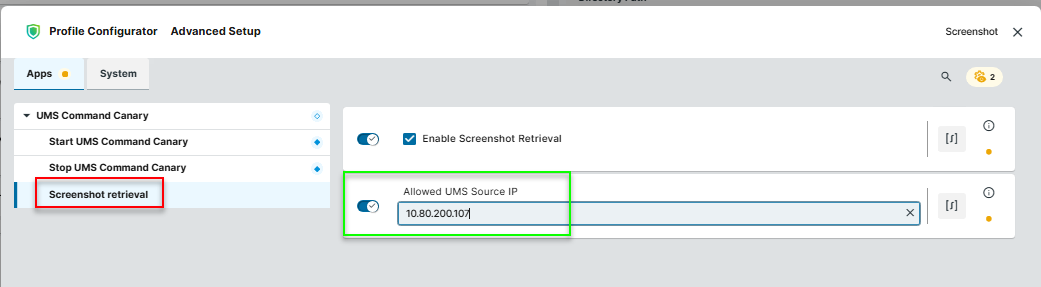
That also meant the UMS had to fetch the image.
JavaScript running in an administrator’s browser would send its requests from the administrator’s workstation. Simply hosting the script on the UMS server would not make the endpoint see that server as the source.
A small relay on the UMS server
The missing piece needed to run on the UMS server itself.
The UMS server already hosted Java web applications through Tomcat. That gave us somewhere to put a small relay, packaged as a separate WAR - a Java web application archive - alongside the existing applications.
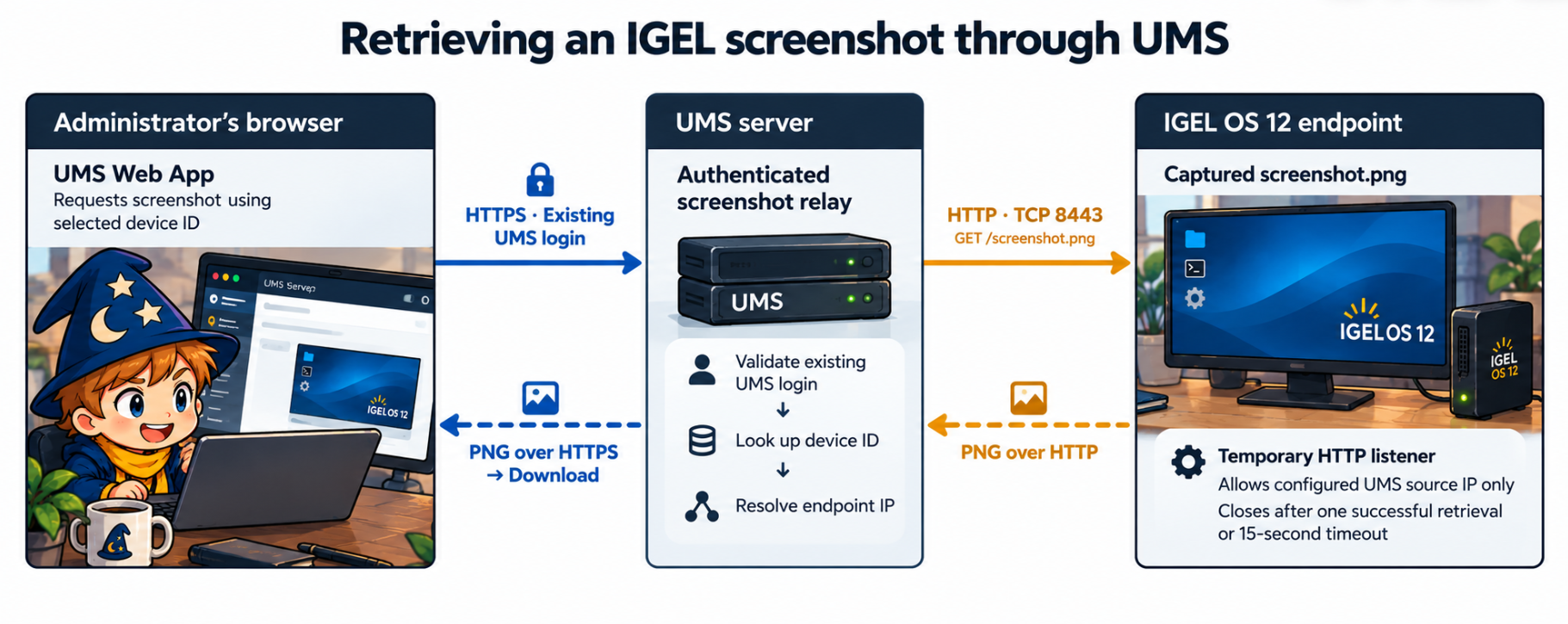
The browser would send the selected device’s numeric UMS ID to the relay over HTTPS, using the existing Web App login. The relay would validate the login, look up the device’s reported IP address through the UMS, and request the PNG from that address.
The endpoint would now see the request coming from the UMS server, allowing the browser to receive the image through its existing HTTPS connection to the server.
The image path was now:
Administrator's browser
    |
    | HTTPS request, existing login to the UMS, selected device ID
    v
Custom relay hosted on the UMS server
    |
    | Look up device IP through the UMS
    | HTTP GET to endpoint TCP 8443
    v
Temporary endpoint listener
    |
    | Return the PNG to the UMS
    v
The UMS relay returns the PNG to the browser over HTTPS
There is a distinction here: the browser’s connection to the UMS used HTTPS. The connection from the UMS server to the endpoint used plaintext HTTP in this lab design, despite the listener running on port 8443.
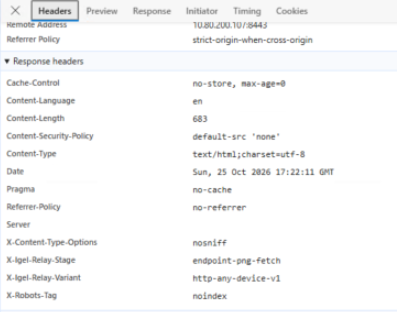
The first useful failure came back with X-IGEL-Relay-Stage: endpoint-png-fetch. Authentication and device lookup had passed; fetching the image had not. That narrowed the next check to the temporary listener, rather than sending us back through the login code.
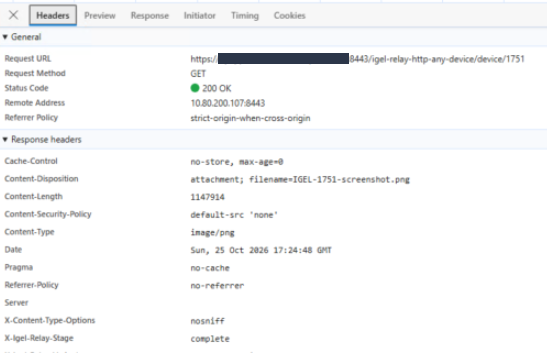
Eventually, the response changed to 200 OK, image/png, and actual PNG bytes. We finally had an image arriving in the browser.
It still did not download automatically. fetch() had retrieved the bytes, but the JavaScript needed to turn them into a browser download as well. One more small piece.
One saved image was almost entirely black. After waking the display, another capture showed the desktop.
I then disconnected shadowing and tried again. With the display awake, it still worked. That answered the question left over from the early terminal tests.
The black image was a useful reminder, though: a screenshot could help me decide what to do next, but it could not prove that nobody was using the device.
Making it something an administrator could use
At this point I could get the picture back, but asking an administrator to fetch it from DevTools was not the workflow I had in mind.
I had already added a copy/paste button to the UMS Web App through shadow by having it load a separate JavaScript file. So I thought I might as well try the same approach to connect the screenshot command to the download.
The first approach was a download button. That evolved into a short-lived control at the top right, shown after the screenshot command was sent.
Rather than make an administrator race to click another button while a 15-second listener was running, I wanted retrieval to happen automatically.
The JavaScript watched the native command’s network request and queued a fetch ten seconds after a successful response, giving the endpoint time to capture the image and start its listener.
Once the relay returns the PNG, the JavaScript checks its header and starts the browser download. A temporary Save Screenshot Again control retains the fetched image in browser memory, so saving it again does not require a second request to the one-shot listener.
The trigger needed another round of testing. After troubleshooting a bit, I found that the script saw the native /execute request but failed to recognize the screenshot command after the dialog closed. It never queued retrieval.
I changed the trigger to start the timer after a successful native Execute response for the selected device. That made the automatic download work, but another successful command for that device could start a retrieval attempt too. It would not take another screenshot; I still needed to limit the trigger to the screenshot command.
After some more back and forth, I finally had a working flow:
- The screenshot app is installed and configured on the endpoint.
- The administrator invokes the screenshot command.
- The endpoint captures the PNG and starts the temporary HTTP listener, allowing requests from the UMS server’s configured source IP.
- Ten seconds after the successful command response, the browser script requests the image through the UMS relay and starts the download.
- The endpoint listener closes after a successful retrieval or its 15-second timeout.
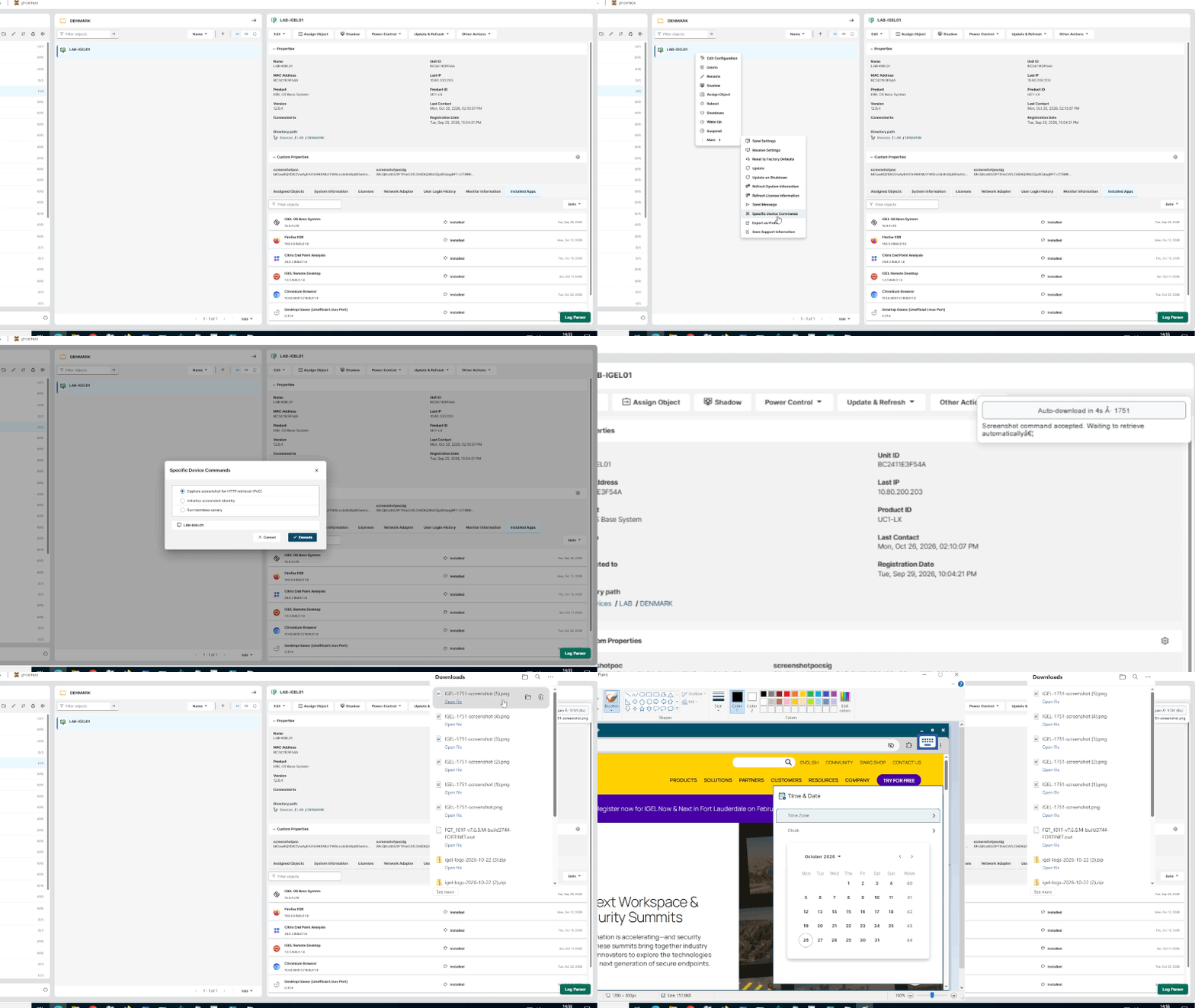
The browser’s ten-second delay starts when the command response returns. The listener’s 15-second timeout starts when it is ready to serve the image. If those timings drift too far apart, the fetch can arrive before the listener is ready or after it has closed.
The connection from the UMS server to the endpoint still uses plaintext HTTP - So even in a environment where only the UMS server would be allowed to communicate with the endpoint at tcp 8443, it would still be non-encrypted. The relay checks the UMS login, but it does not yet check whether that administrator is allowed to retrieve a screenshot from that device. A short-lived listener and an IP allowlist do not solve either problem.
But I could finally ask an awake device for a screenshot and get it back through the UMS without opening a shadow session. The quick look I had been missing was working.
Getting the picture out had taken rather more work than taking it.
And if anyone on the IGEL development team is reading: wink wink, this is something I’d love to see added. Please? :)